Turn text into visiuals
Using AI to generate Causal Relationship Diagrams allows you to effortlessly tackle the challenge of “complex multi-factor relationships.” In just seconds, you can produce visually clear, properly labeled diagrams suitable for reports or academic papers. Many people have struggled with these issues: manually mapping causal relationships often misses indirect links; drawing arrows and adjusting layouts in PowerPoint requires repeated modifications; self-made diagrams can become tangled, with intersecting arrows making it hard for readers to grasp the core logic; and when a diagram is urgently needed, it’s difficult to find a tool that’s usable without professional skills. These problems can be easily solved using AI tools like PicDoc, which convert text into diagrams. Even first-time users can quickly create professional, logically rigorous diagrams.
What Is a Causal Relationship Diagram and When to Use It?
Core Value of Causal Diagrams: Making Hidden Logic Visible
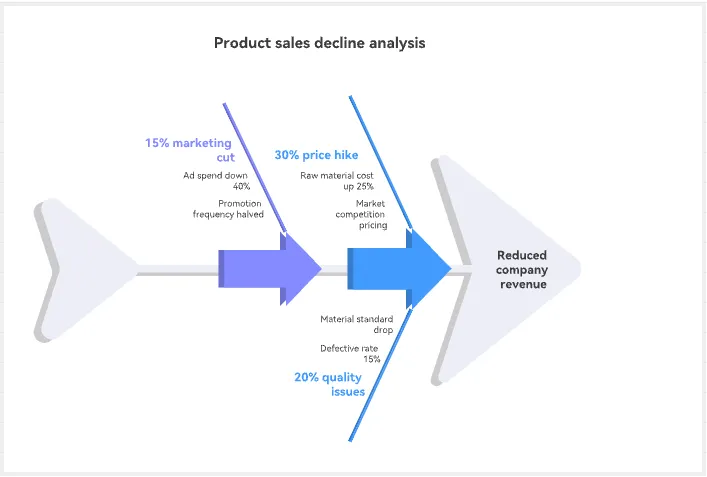
A causal relationship diagram is a visualization tool focused on "variable relationships." Its main function is to transform hidden "cause-and-effect" logic in text into intuitive diagram links—nodes represent causes or effects, arrows indicate influence directions, and labels can show influence strength (e.g., strong vs. weak) or type (direct vs. indirect). Compared to plain text, causal diagrams are better suited for complex scenarios involving multiple factors and chains (e.g., three direct causes + two indirect causes affecting a single outcome). They are especially useful in these contexts:
- Workplace scenarios: Analyzing the effects of marketing campaigns, diagnosing root causes of product issues, or assessing policy implementation ripple effects.
- Academic scenarios: Building logical frameworks for papers, sociological causal analysis, or evaluating economic factors.
- Practical scenarios: Breaking down personal problems, analyzing project risk propagation, or streamlining business process logic.
Scenarios Where AI Causal Diagrams Are Not Suitable
Causal diagrams have clear boundaries for use. The following situations may be better served with alternative tools:
- Single cause-effect chain: When you only need to present “one cause leading to one effect” (e.g., “Rain → Wet Ground”), a simple text or arrow label is more concise than a complex diagram.
- No clear causal relationship: If you only need to list related factors (e.g., “8 factors affecting user retention”) without specifying who influences whom, a mind map or list is more appropriate.
- Quantifying causal probability: When you need to precisely indicate the probability of a cause leading to an effect (e.g., “Cause A triggers Result B with 75% probability”), professional analysts should use Tableau or statistical tools.

4-Step Practical Guide to AI Causal Diagrams (PicDoc Workflow)
Step 1: Organize Cause-and-Effect Logic and Submit to PicDoc
You don’t need to pre-format complex chains—just clearly specify causes, effects, and relationships (direct/indirect, strong/weak). There are two submission methods:
- Direct text input: Paste the causal logic in natural language, e.g.,
“Direct causes: frequent requirement changes, insufficient development resources; Indirect causes: insufficient requirement review; Outcome: project delay; Relationship: requirement changes → strong impact, insufficient development resources → strong impact, insufficient review → indirect impact on requirement changes.” - File upload: If the logic is already documented, use the “Import File” feature; the tool automatically identifies core information with no manual entry required.
PicDoc accurately parses causal relationships from both fully written and fragmented inputs without additional formatting adjustments.
Step 2: Specify Diagram Requirements and Launch AI Generation
After submitting your content, indicate “Generate Causal Relationship Diagram” in the input box and click the corresponding button. PicDoc completes two key actions within 1–3 seconds:
- Logic sorting: Extracts causes, effects, and relationship attributes, automatically completing potential indirect links to ensure coherent logic.
- Diagram generation: Constructs a causal framework according to industry standards, differentiates cause and effect nodes, indicates influence direction with arrows, and varies arrow thickness by relationship strength. Initially, the tool provides 3–5 diagram style options; once selected, the causal diagram is locked. No manual node drawing or arrow adjustment is required, making it beginner-friendly.
Step 3: Refine Diagram via Outline Editing
After generating the basic causal diagram, use the platform’s “Outline” feature to adjust content and styling, with all modifications updated in real time:
- Content adjustments: Directly add/delete causes or effects, modify relationship attributes (e.g., change “indirect impact” to “direct impact”), and the diagram updates automatically.
- Color optimization: If default colors are unsatisfactory, click the top color button; the system offers multiple pre-set palettes suitable for various scenarios.
Step 4: Multi-Format Export for All Use Cases
Once the diagram meets your requirements, click “Export” at the top. PicDoc supports PNG, JPG, PDF, and PPT formats:
- PNG/JPG: Ideal for Word reports or blog posts; clear nodes and arrows even when zoomed.
- PDF: Best for assignments and archives; consistent formatting across devices; suitable for printing.
- PPT: Directly import into presentations; text size and positions can be adjusted without screenshots.
- Online sharing: Generate a unique link for team collaboration; colleagues can view and suggest edits without logging in. Updating the logic later (e.g., adding “Cause: low communication efficiency”) requires only a modification in the outline and a click to regenerate—no need to resubmit all information.

5 AI Causal Diagram Tools: Side-by-Side Comparison

Conclusion:
For zero-base users or those prioritizing efficiency, PicDoc is the top choice—no need to learn diagram logic or drawing operations. Users already managing data in Excel can choose Excel AI Plugin. For visually appealing diagrams, Canva is recommended. Enterprise-level deep causal analysis can use Visio or Tableau.
4 Pitfall Avoidance Tips: Ensuring Logical Value in AI Causal Diagrams
Pitfall 1: Vague causal descriptions lead to parsing errors
- Issue: Submitting “Insufficient marketing, outdated product → poor sales” without specifying cause and effect or relationship type causes messy diagram nodes.
- Solution: Use “Cause: XX; Effect: XX; Relationship: XX → direct/indirect impact XX” format to clearly label influence direction.
Pitfall 2: Excessively deep chains break logical flow
- Issue: Submitting “Cause A → B → C → D → Outcome E” exceeds 5 layers, making diagrams too long and end-to-end logic hard to follow.
- Solution: Merge minor intermediate nodes (e.g., A → C → E, omit B/D) or split into shorter chains for clarity.
Pitfall 3: Confusing correlation with causation distorts logic
- Issue: Mistaking correlation for causation (e.g., “Ice cream sales ↑ → drowning incidents ↑” caused by temperature) leads to misleading diagrams.
- Solution: Verify causal validity before generating (common sense or data to exclude third-party factors) and only submit clear causal links.
Pitfall 4: Overloading factors obscures core logic
- Issue: Submitting 10+ cause nodes including minor or unrelated factors (e.g., office location when analyzing sales decline) hides key causes.
- Solution: Focus on 3–5 key factors, merge similar ones (e.g., “WeChat marketing insufficient, TikTok marketing insufficient” → “Online marketing lacking”) to highlight main logic.

Conclusion
Advancements in AI have made causal relationship diagrams no longer exclusive to analysts. PicDoc simplifies complex logic mapping and diagramming into “submit description → edit outline → export” in just a few steps. Even zero-base users can generate professional, logically rigorous diagrams within 5 minutes. If you’ve struggled with “complex causal mapping or tedious diagramming,” try PicDoc’s causal diagram generator. Save time for logic verification and decision-making, making visualization truly serve core needs. Submit a simple set of logic now and experience the convenience of AI-powered causal visualization!
FAQ
Q1: Do I need knowledge of logical analysis to generate causal diagrams with PicDoc?
No. The tool automatically parses submitted causal descriptions and fills in potential links. You just need to clearly indicate “who influences whom and to what degree,” even if it’s your first time using causal diagrams.
Q2: Can I modify node shapes and sizes after generation?
Yes. You can adjust node size and add or modify variables in the outline after generation.
Q3: Are generated causal diagrams copyrighted, and can they be used commercially?
Diagrams generated by PicDoc are owned by the user. Members can use them commercially for reports, product manuals, marketing, etc. Non-members are limited to personal learning or internal company use. Check platform copyright guidelines for details.
Read more
How to Create Relationship Charts for Characters in Movies, Books, and Textbooks? A Super Practical and Simple Method
Published at:2026-04-08
AI-powered one-click generation of intangible cultural heritage visualizations? This tool actually does it!
Published at:2026-04-08
PicDoc: One-click experimental flowchart generation—the ultimate tool for preparing lab classes
Published at:2026-04-08
7 Best AI Flowchart Generators in 2026: Turn Ideas into Flowcharts in Minutes
Published at:2026-03-31
5 Best Biomedical Illustration Tools Reviewed in 2026 | Features, Use Cases & How to Choose
Published at:2026-03-30
4 Best AI Knowledge Card Generators Comparison | Flashcards and Study Cards
Published at:2026-03-27
How to Create a Thesis Technology Roadmap | A 3-Step Practical Guide With Free Tools
Published at:2026-03-24
3 Best Medical Illustration Tools for Research Figures and Presentations
Published at:2026-03-23
Latest Release
How to Create Relationship Charts for Characters in Movies, Books, and Textbooks? A Super Practical and Simple Method
Published at:2026-04-08
AI-powered one-click generation of intangible cultural heritage visualizations? This tool actually does it!
Published at:2026-04-08
PicDoc: One-click experimental flowchart generation—the ultimate tool for preparing lab classes
Published at:2026-04-08
7 Best AI Flowchart Generators in 2026: Turn Ideas into Flowcharts in Minutes
Published at:2026-03-31
5 Best Biomedical Illustration Tools Reviewed in 2026 | Features, Use Cases & How to Choose
Published at:2026-03-30
4 Best AI Knowledge Card Generators Comparison | Flashcards and Study Cards
Published at:2026-03-27
How to Create a Thesis Technology Roadmap | A 3-Step Practical Guide With Free Tools
Published at:2026-03-24
3 Best Medical Illustration Tools for Research Figures and Presentations
Published at:2026-03-23
Turn text into visiuals
Turn complex concepts into intuitive visuals